
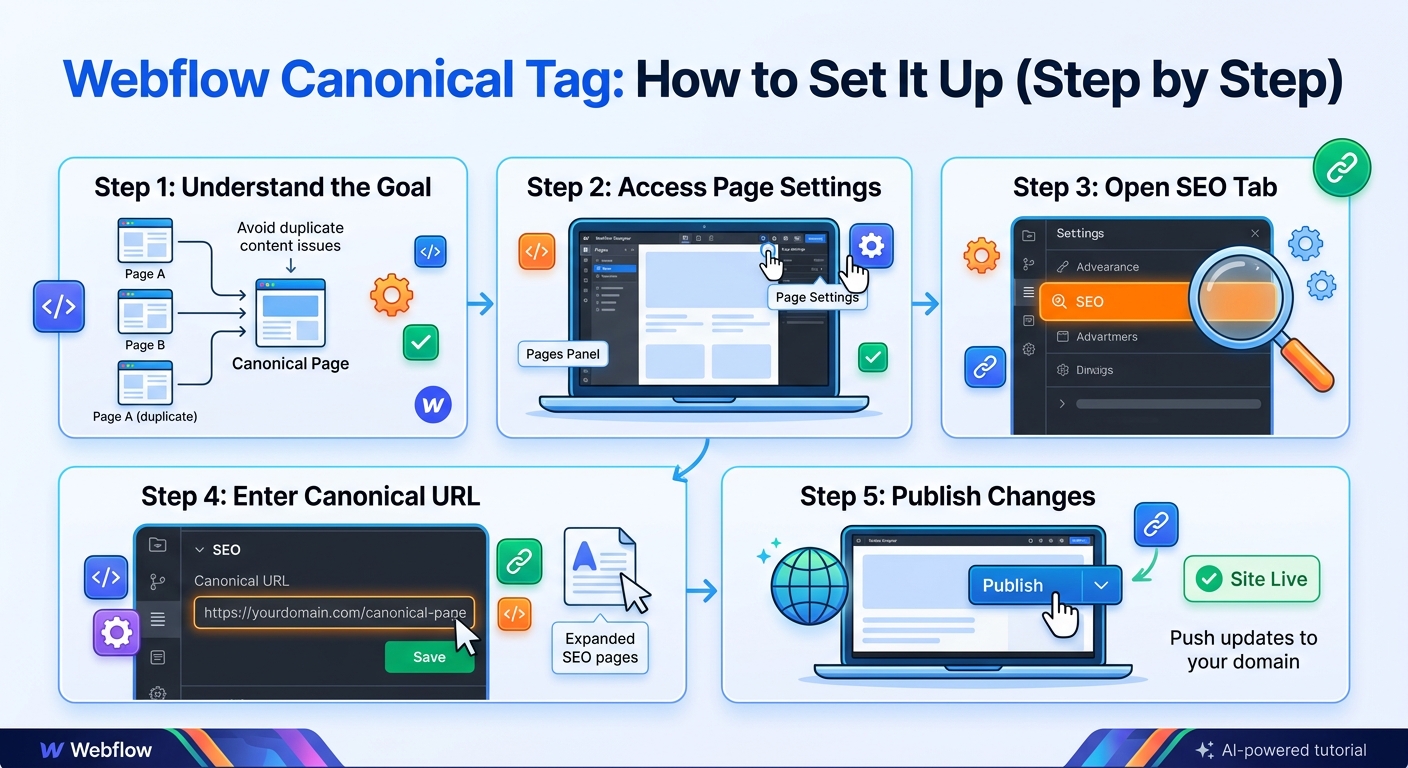
A canonical tag tells search engines which URL is the preferred version of a page. On a Webflow site you can set one for the whole site, for a single page, or for CMS items. This guide shows each method, with examples, explains when to use canonical tags on a Webflow project, and covers how to check that your setup works and what usually goes wrong.
If you are new to the idea, start with our canonical tags best practices guide. Note that Webflow occasionally renames menu items, so the labels below may differ slightly in your account.
What is a canonical tag, and why does a Webflow site need one?
A canonical tag, written as rel="canonical", is a line of HTML in the head of a page that names the preferred URL for that content. Many people call it a canonical meta tag, although technically it is a link element rather than a meta tag. It looks like this:
<link rel="canonical" href="https://www.example.com/services/" />Search engines treat it as a strong hint about which version of a page to index when several URLs show the same or very similar content. It helps keep your ranking signals together on one URL, and it protects you from accidental duplicates. Good canonical tagging on Webflow is mostly about being consistent: the same preferred address in your canonical tags, your internal links, your sitemap and your default domain setting.
Why Webflow sites end up with duplicate URLs
Even a small Webflow project can be reachable through more than one address. The common sources are:
- The webflow.io staging address. Every project has a
yoursite.webflow.ioversion that can be crawled and compete with the live site. - www and non-www. A site that answers at both
example.comandwww.example.comhas two versions of every page. - Tracking parameters. Campaign links such as
?utm_source=newslettercreate new URLs for existing pages. - CMS content. Collection pages, filtered lists and near-identical items can overlap.
- Pagination. Collection lists split across pages use a query parameter for each page.
A canonical tag is the standard way to tell search engines which of these URLs you want indexed.
Method 1: Set a global canonical URL for the whole site
This is the quickest way to cover every page.
- Open your project and go to Site settings.
- Open the SEO tab.
- Find the Global canonical tag URL field.
- Enter your preferred domain with
https://, for examplehttps://www.example.com. Do not add a page path. - Save, then publish the site.
Webflow then builds each page's canonical tag from this base URL plus the page's own path. Choose the same version, www or non-www, that you have set as your default domain. If the two disagree, your canonicals will point to a URL that redirects.
Method 2: Add a custom canonical to a single page
Use this when one specific page needs a different canonical, for example when it duplicates another page that you want to rank instead.
- In the Pages panel, hover over the page and click the gear icon to open its settings.
- Scroll to Custom code.
- In the Inside <head> tag box, add:
<link rel="canonical" href="https://www.example.com/preferred-page/" />- Save, then publish.
Use the full HTTPS URL, and point to a live page that returns a 200 status. Then check the published source: if you have also set a global canonical, make sure the page does not now output two canonical tags. There should be exactly one.
Canonical tag examples for common Webflow situations
This table shows what the canonical should point to in the situations you are most likely to meet:
| Situation | Canonical should point to |
|---|---|
| A normal static page | Its own clean URL (self-referencing) |
A page opened with ?utm_source=... | The same page without the parameter |
| A blog post in the CMS | Its own URL, built from the slug field |
| A duplicate CMS item you want to keep live | The preferred item's URL, set with a custom field |
| The webflow.io staging address | Do not index it; keep the live domain as the only version |
How to check that it worked
- View the published source. Open the live page, view the page source, and search for
canonical. You should find exactly one tag, with a full HTTPS URL that matches the page you want indexed. - Use Google Search Console. Run URL Inspection on the page and compare User-declared canonical with Google-selected canonical. If they differ, Google disagrees with your choice, so look for conflicting signals such as redirects or internal links to another version.
- Test several page types. Check a static page, a CMS item and a collection list page, because they use different settings.
Changes take effect after Google recrawls the pages, which can take days or weeks.
Reading the canonical statuses in Search Console
The Page indexing report in Search Console uses labels that tell you how Google handled your tags:
- Alternate page with proper canonical tag: Google followed your canonical and indexed the target instead. This is expected for parameter versions and duplicates.
- Duplicate without user-selected canonical: Google found duplicates and no tag, so it chose a version itself. Add a canonical tag to take control.
- Duplicate, Google chose different canonical than user: your tag was overridden. Check your default domain, redirects, internal links and sitemap for conflicts.
Common Webflow canonical mistakes
- www and non-www mismatch. The global canonical uses one version while the site redirects to the other. Match the global canonical to your default domain.
- The webflow.io staging address getting indexed. Your
yoursite.webflow.ioversion can compete with the live site. In Site settings > SEO, switch on the option to disable indexing of the Webflow subdomain. - Two canonical tags on one page. This happens when a custom code canonical is added on top of the global one. Always check the published source.
- A canonical that points to a redirected URL. If you changed a slug and added a 301 redirect, update any canonical or custom code that still uses the old address.
- Paginated collection lists. Webflow's collection list pagination uses a query parameter in the URL. Check what canonical those paginated URLs output. As explained in our guide to canonical tags for pagination, page 2 should not point to page 1.
- Duplicate CMS items. Two items with near-identical content compete with each other. Merge them, redirect one, or use a custom canonical.
- A typo in the URL. A missing letter or the wrong protocol in a hand-typed canonical sends search engines to a page that does not exist.
Canonical tag or 301 redirect in Webflow?
If the old page no longer needs to exist, use a 301 redirect instead of a canonical tag. You can add redirects in Webflow's site settings, under the 301 redirects section, which sits in Publishing or Hosting depending on your version. The full comparison is in our guide to canonical vs 301 redirect.
A simple way to remember it: use a redirect when you are removing or moving a page, and a canonical tag when both URLs must keep working but only one should rank.
Webflow canonical tag best practices checklist
- Set the global canonical URL to your preferred domain, matching your default domain setting.
- Make sure every indexable page outputs exactly one canonical tag.
- Use full HTTPS URLs, with consistent casing and slash style.
- Point canonicals only at live pages that return a 200 status.
- Disable indexing of the webflow.io subdomain.
- Check CMS templates and paginated collection lists, not just static pages.
- Keep your internal links and sitemap pointing at the same URLs as your canonicals.
- Re-check after you change a slug, a domain setting or a redirect.
Frequently asked questions
Where do I add a canonical tag in Webflow?
Set the global canonical URL in Site settings > SEO, or add a custom tag in a page's Custom code head section.
Does Webflow add canonical tags automatically?
Check your published page source to be sure. If there is no canonical tag, set the global canonical URL or add your own.
Can I use a different canonical on one page?
Yes, with custom code in that page's settings. Then confirm the page outputs only one canonical tag.
Do I need a canonical tag if all my pages are unique?
A self-referencing canonical is still worth having. It protects against tracking parameters and other URL variations creating accidental duplicates.
How long until Google picks up a new canonical?
It depends on how often Google crawls the page. Use URL Inspection in Search Console to request indexing for important pages.
How do I use a canonical tag for a CMS blog post in Webflow?
Add custom code to the CMS template page that builds the tag from the fixed part of your URL plus the item's slug field. Each post then gets its own self-referencing canonical.
Will a canonical tag fix duplicate content on my Webflow site?
It helps search engines choose the right version, but it is only a hint. Keep your redirects, internal links and sitemap consistent with it, or Google may choose a different URL.